User Interface Manual
import { Tabs, TabItem } from ‘@astrojs/starlight/components’;
EventConductor includes a full web management UI built with the Mateu framework. It exposes every operational aspect of the platform: workflow definitions, running processes, form definitions, and pending user tasks.
Accessing the UI
Section titled “Accessing the UI”The UI is served through the API Gateway (default port 8191). Authentication is handled via Keycloak (or any OpenID Connect provider).
Navigate to http://localhost:8191 in your browser.
Enter your username and password and click Sign In.
Console — Main Dashboard
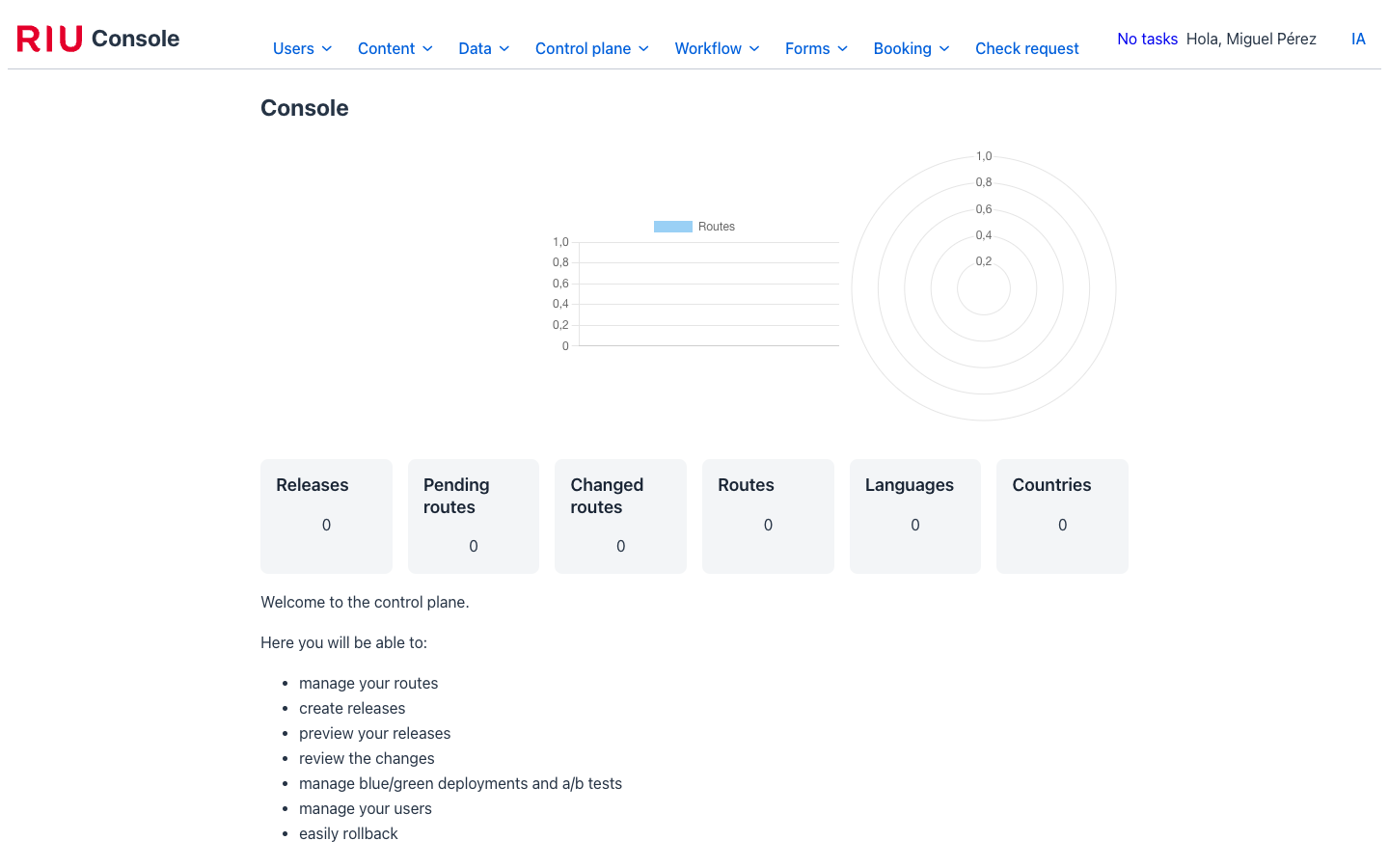
Section titled “Console — Main Dashboard”After logging in you land on the Console — a top-level management hub that aggregates all installed modules. The top navigation bar provides access to every section: Users, Content, Control Plane, Workflow, Forms, Booking, and the AI agent.
Workflow Engine
Section titled “Workflow Engine”Access the workflow engine by navigating to http://localhost:8191/_workflow or clicking Workflow in the top navigation bar.
Dashboard
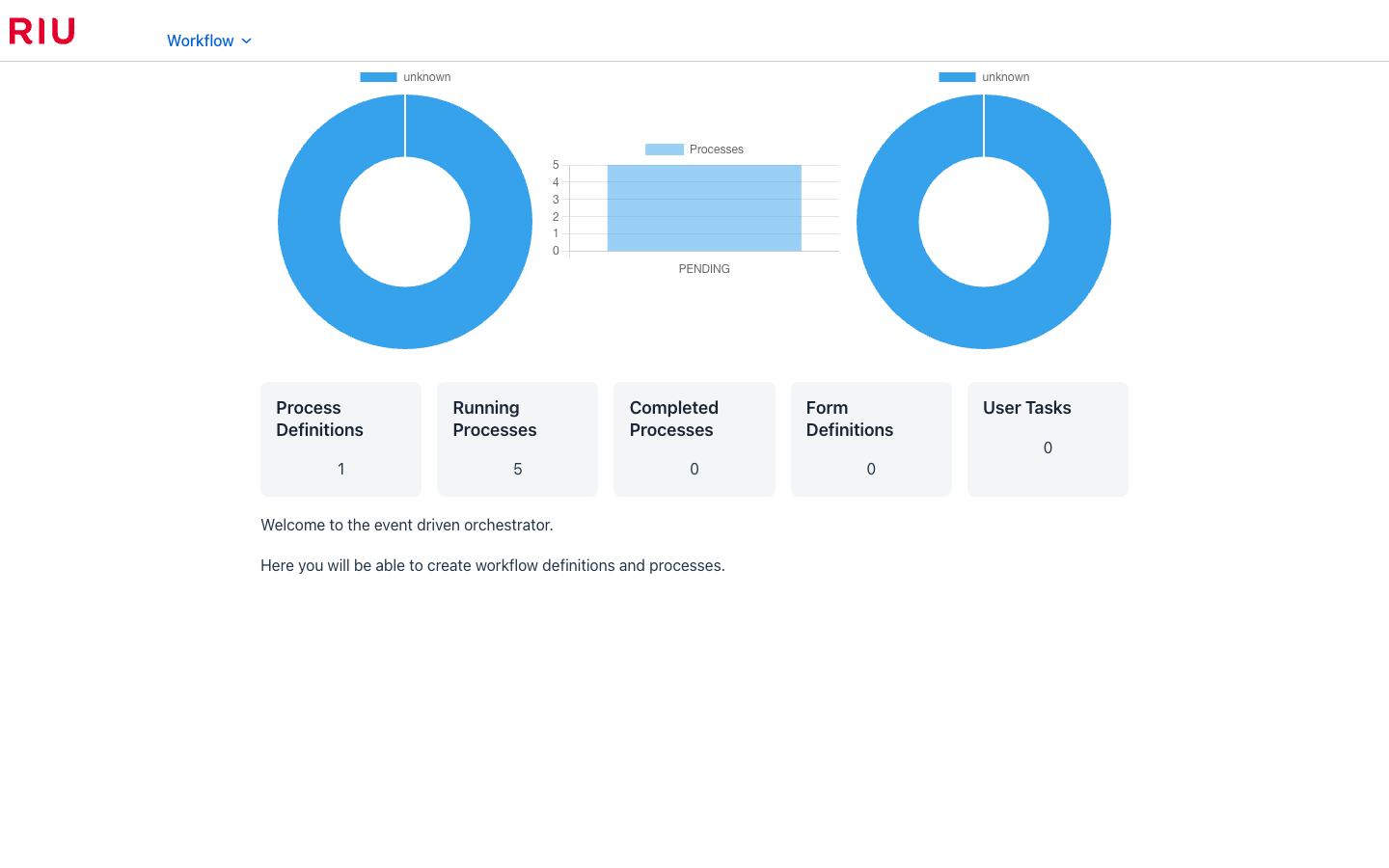
Section titled “Dashboard”The workflow dashboard gives you an instant overview of your orchestration platform:
- Process Definitions — total number of workflow definitions
- Running Processes — currently active process instances
- Completed Processes — successfully finished instances
- Form Definitions — forms available in the forms engine
- User Tasks — pending human tasks across all processes
Two charts provide a visual breakdown: processes by definition (doughnut) and processes by status (bar chart).
Workflow Definitions
Section titled “Workflow Definitions”Navigate via Workflow → Definitions.
The definitions list shows all registered workflow definitions with their ID, name, description, status, and concurrency settings.
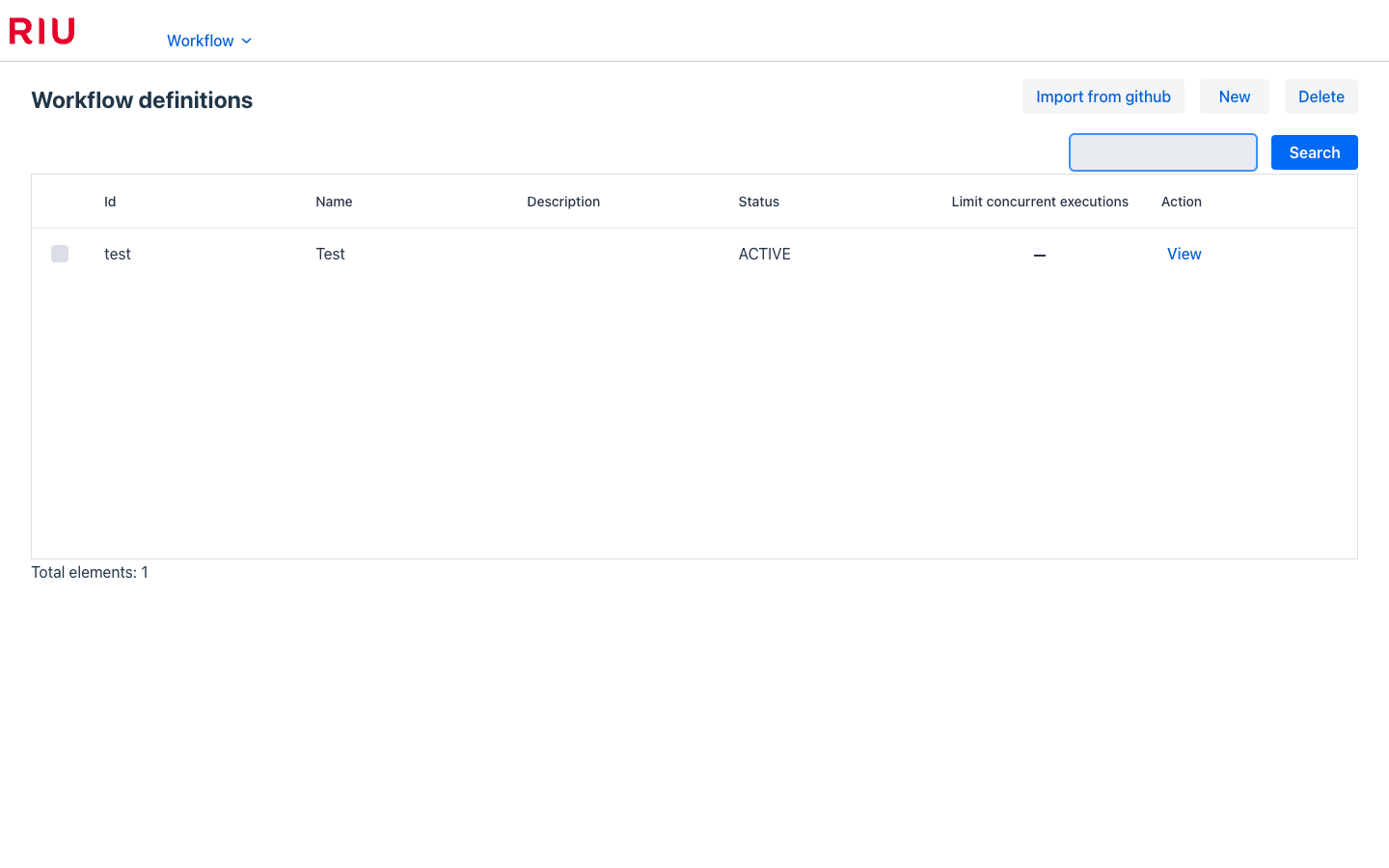
The page is read-only: definitions are authored as JSON/YAML files (classpath, Git import or database), not created, edited or deleted from the UI.
Available actions:
| Button | Description |
|---|---|
| Import from github | Pull workflow JSON files from a configured Git repository and upsert them |
| View | Open the read-only definition detail |
View opens a read-only detail view — not an editor — with a compact property list (status, version, description, concurrency, cron, max step executions, and a Paused row showing whether the definition’s runtime pause flag is set), a Diagram section rendering the workflow graph (read-only, with a full-screen expand button), and the list of steps below.
Definitions are authored as files — *.ec.yaml (edited with the IDE plugins), not in the UI. The detail
view is read-only; its toolbar carries only the runtime toggles plus a YAML export:
| Button | Description |
|---|---|
| Disable | Stop accepting new instances (ACTIVE → DISABLED); running ones continue |
| Enable | Resume accepting new instances. Shown while disabled |
| Pause | Set the runtime pause flag and pause all the definition’s PENDING/RUNNING processes. New instances (cron included) are still created, born paused. Shown while the definition is not paused |
| Resume | Clear the pause flag and resume all the definition’s PAUSED processes, including the ones born paused. Shown only while the definition is paused |
| Export YAML | Download the definition as a YAML file |
Pause/resume and disable/enable are all runtime toggles, orthogonal to each other.
The Status column/badge shows the runtime state: Active, Paused, Disabled or Archived.
Processes
Section titled “Processes”Navigate via Workflow → Processes.
The processes list shows all process instances with their ID, workflow name, status badge, creation date, start date, and finish date.
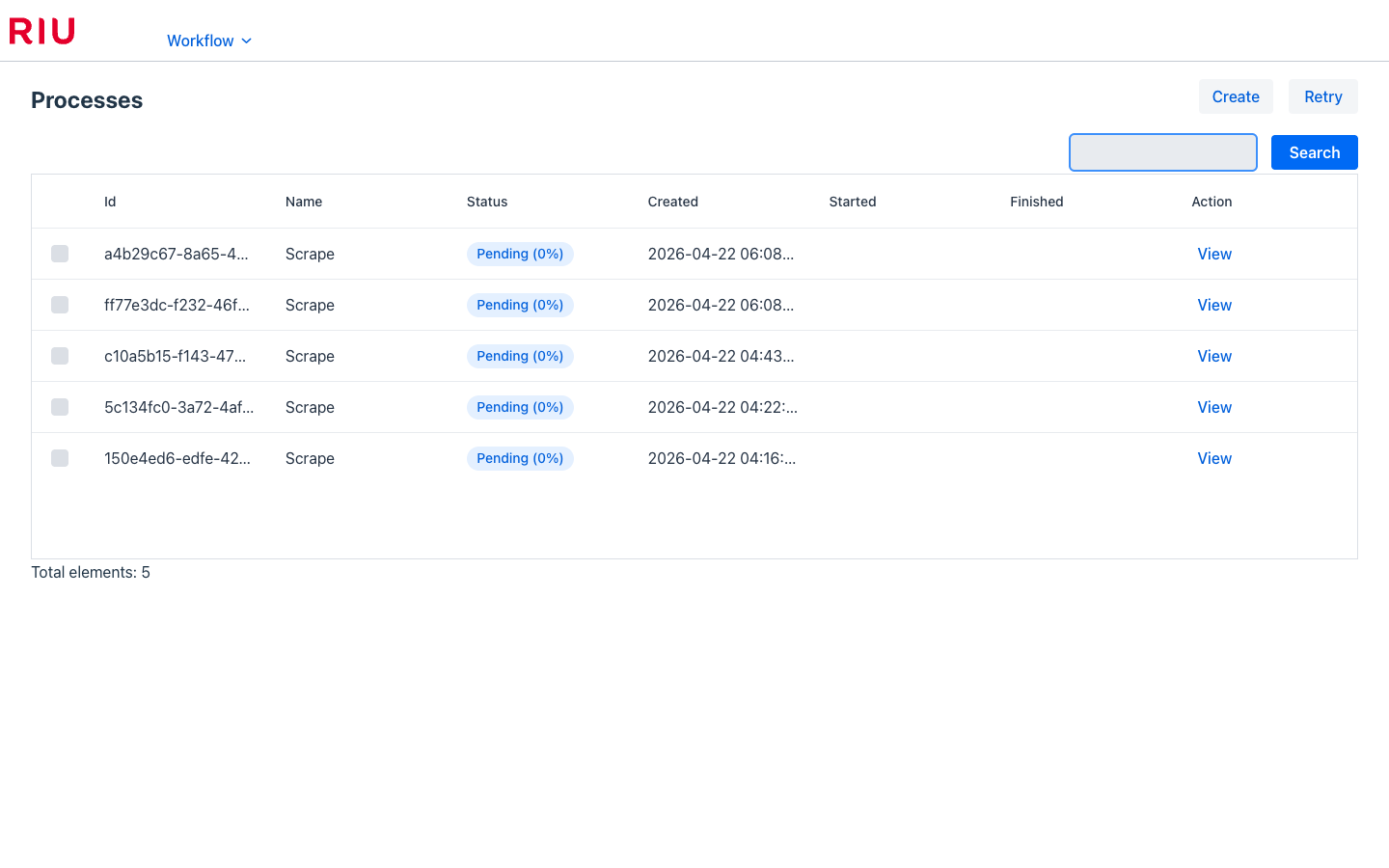
Available actions:
| Button | Description |
|---|---|
| Create | Manually start a new process instance |
| Retry from failure | Pick the selected processes up where they stopped: the steps that failed or were cancelled run again, the ones that succeeded are left alone |
| Restart from the beginning | Run the selected processes again from the top, the steps that already succeeded included. Asks for confirmation |
| Search | Filter by ID or name |
| View | Open the process detail |
Filters: Only errors, Include child processes, Definition, Tag (the processes of every definition carrying the
tag — see the definition’s tags), Status, Business key and the creation date range.
The list shows top-level processes, with their Business key. The runs a PROCESS step starts — one per
item of a forEach over PROCESS, keyed parent:<step execution> — are read from their parent (its Steps,
Errors and Diagram tabs); tick Include child processes to list them too.
Both re-run buttons apply to whatever is ticked, and the engine decides: a process that is not
ERROR or CANCELLED is left alone and says so in the log, rather than the list guessing which
rows qualify from a page that may already be out of date.
Status badges:
| Badge | Meaning |
|---|---|
Pending (0%) | Created, not yet started |
Running (N%) | In progress — percentage shows completion |
Paused | Held by an operator or a paused definition — no new steps start until resumed |
Completed | All steps finished successfully |
Compensated | A step failed and the saga rolled back cleanly — every executed step undone, in reverse order. Green, and at 100%: not the happy outcome, but the process did what it was written to do. The badge to worry about is Error |
Error | A step failed after exhausting retries, and the process did not (or could not) fully roll back |
Cancelled | Process was cancelled |
Clicking View on a row opens the process detail, showing all step executions, their individual statuses, variables, and the full audit log. The detail is organised in tabs: Steps, Messages, Errors and Resources. The Errors tab lists the process’s own error lines and those of the child runs its failed PROCESS steps started, against the step that started them (rooms · Room 900 › create-room-booking): why an iteration failed is read on the parent.
Reading the diagram
Section titled “Reading the diagram”The process detail draws the definition with this run painted onto it. Hovering a step opens a card with why it is where it is — the last error, the attempt count, what it awaits, its deadline, the worker and a snapshot of its variables.
| Node | Meaning |
|---|---|
| Green outline, green tick | The step completed |
| Blue outline, pulsing | Running right now |
| Red outline | Failed (or timed out) after exhausting its retries |
| Grey dashed, faded | Not reached — the process never got there |
| Amber outline, amber undo badge | The step ran as a compensation: it undid work rather than doing any |
| A number, bottom-left | Its place in the order this run took — 1 for the step that went first. A step with no number has not had its turn |
The diagram follows the process while the page is open: it polls, and each step’s state travels with the refresh, so a step that starts, fails or is cancelled while somebody is watching changes colour under them. The picture is repainted in place, so the zoom and whatever is selected survive it.
The minimap in the bottom-right corner frames the part of the graph on screen; click or drag in it to move there. Fit keeps every step clear of it — when a centred fit would put a step beneath the minimap, the graph is fitted beside or above it instead. Its × folds it into a small map button (the browser remembers the choice); the button brings it back.
A forEach’s iterations are named by their forEach.label wherever they appear — the Steps and
Errors tabs, the iteration lanes of the diagram and the messages — and so are the runs of a
compensation that undoes them: cancel-room · Room 101, not cancel-room · item 0.
The numbers answer what the shape cannot. A workflow drawn top to bottom is not a list of what happened in that order: branches drawn side by side ran in some order, a step drawn between two others may have run before both, and a step drawn on the path may have been skipped entirely. The tick says a step ran; the number says when.
Conditions on the lines are drawn short — the first few characters, with the whole expression one hover away. An expression is as long as its author needed it to be, and drawn in full it can be wider than the nodes it sits between, which is how a condition ends up hiding the very step it applies to. They are also placed to keep off the nodes: along their own line first, and only then stepped off it.
The amber matters on a rolled-back process. A compensation that succeeds is COMPLETED like
any other step, so painted green a fully rolled-back saga read as a successful one with a few
extra boxes. Amber says the step did its job and the job was undoing something; its hover card
carries a COMPENSATION chip next to the status.
The process detail toolbar carries the process-level actions, each shown only when it applies to the current status:
| Button | Description |
|---|---|
| Cancel process | Cancel the process (hidden once it has finished — completed, error or cancelled) |
| Pause process | Pause the process: in-flight work finishes and is accepted, but no successor starts and timer/timeout clocks freeze. Shown while the process is PENDING or RUNNING |
| Resume process | Put the process back to RUNNING; frozen clocks are shifted by the pause duration and held successors start. Shown only while the process is PAUSED |
| Retry from failure | Pick the process up where it stopped: the steps that failed (or were cancelled) run again, the ones that succeeded are left alone. Shown while the process is ERROR or CANCELLED |
| Restart from the beginning | Run the whole process again from the top, the steps that already succeeded included. Same statuses, and it asks first |
Which of the two to use
Section titled “Which of the two to use”A retry from failure is the right one when the failure was the surroundings: a worker that was down, a downstream service that has since recovered. It is also the cheaper one — the work that already succeeded is not done twice.
A restart from the beginning is right when the run itself was wrong, or when a step that succeeded produced something the next run needs to produce again. It re-runs every step, so the workers behind them have to be idempotent — which they had to be anyway, since at-least-once delivery has always been the contract.
Both re-run the same process instance, keeping its id and business key, and both re-run the workflow definition as it was when that process was created — the definition is snapshotted into the process at birth, so a restart is not affected by later edits. A restart also puts the process variables back to the ones it was created with, since re-running from variables a later step wrote would not be starting from the beginning.
Neither is offered for a COMPLETED or COMPENSATED process. Both are terminal by design: a
compensated process already rolled back, and running it again is a new process, not a repeat of
this one.
Schedules
Section titled “Schedules”Navigate via Workflow → Schedules (admin console).
Every scheduled start the engine knows, one per id, wherever it is declared: a definition’s
cronExpression or schedules, a cron.yaml imported from the classpath, a directory or git, or
created right here. Columns: Id, Workflow, Cron, When (the cron in words, for the
usual shapes), Zone, Next start, Source (Definition, cron.yaml (git),
cron.yaml (directory), cron.yaml (classpath), UI/API) and Status (Active, Paused,
Workflow inactive, Invalid). Search matches id, workflow, cron, source and variables; the
filters narrow by workflow, where it is declared and status. Pause and Resume act on the
selected rows.
New opens the form: Id (fixed once created), Workflow, Cron (Spring, six fields,
seconds first), Zone (empty: workflow.time.zone) and Variables. Saving lands on the
schedule’s page with its next five starts.
A schedule’s page shows its values, source and ownership, whether and since when it is paused, and:
| Button | Description |
|---|---|
| Pause / Resume | Any schedule. A paused one does not fire; resuming does not replay what fell due meanwhile. The pause is kept by id, so it survives re-imports of the schedule’s file |
| Run now | Any schedule, paused or not: start one process now with its variables (asks first) |
| Edit / Delete | Only schedules created here (source UI/API). One declared in a file is changed in that file |
Under Promote to git the page gives the schedule’s cron.yaml entry, id included. Commit it
next to the definitions: on the next import the file owns the schedule — its values and source
replace the ones set here, its pause carries over — and if it later disappears from git it is
deleted. See Managing schedules.
The definition detail’s Schedules tab lists the same schedules for one workflow, each id a link to its page.
Event triggers and received events
Section titled “Event triggers and received events”Navigate via Workflow → Event triggers (admin console).
Every event trigger of every workflow — the domain events that start it (see
Starting on and waiting for domain events). Columns: Id
(<workflow>/<trigger>), Workflow, Trigger, Destination → topic (saying so when the
destination has no topic configured), Type, Filter, Business key, Variables, Source
(Definition, events.yaml (classpath), events.yaml (directory), events.yaml (git) or UI/API),
Paused by and Status (Active, Paused, Workflow inactive, Duplicate id — an
events.yaml entry whose id the definition already declares, which never fires). Filters narrow by
workflow, where the trigger is declared and status; Pause and Resume act on the selected rows. A
paused trigger starts nothing, and resuming it does not replay what arrived meanwhile.
New creates a trigger here (source UI/API): id and workflow (fixed once created), destination, type,
filter, business key and variables. A trigger’s own page shows everything about it, with Pause or
Resume, and — only for one created here — Edit and Delete; a trigger declared in a definition
or an events.yaml is changed in that file, and the page says which. Promote to git on that page is
the trigger’s events.yaml entry: committed next to the definitions, the file owns the trigger from the
next import on and the copy created here is deleted.
Workflow → Received events lists the latest receipts, newest first: Received, Destination,
Type, Event id, Source, Workflow, Receiver (trigger:<workflow>/<trigger> or
wait:<message>/<key>), Business key / key and Outcome (Started, Delivered, Error —
the reason opens under the row). An event that matched nothing leaves no row.
The definition detail’s Triggers tab (shown when the definition declares any) lists its triggers with the same columns.
Analytics
Section titled “Analytics”Navigate via Workflow → Analytics.
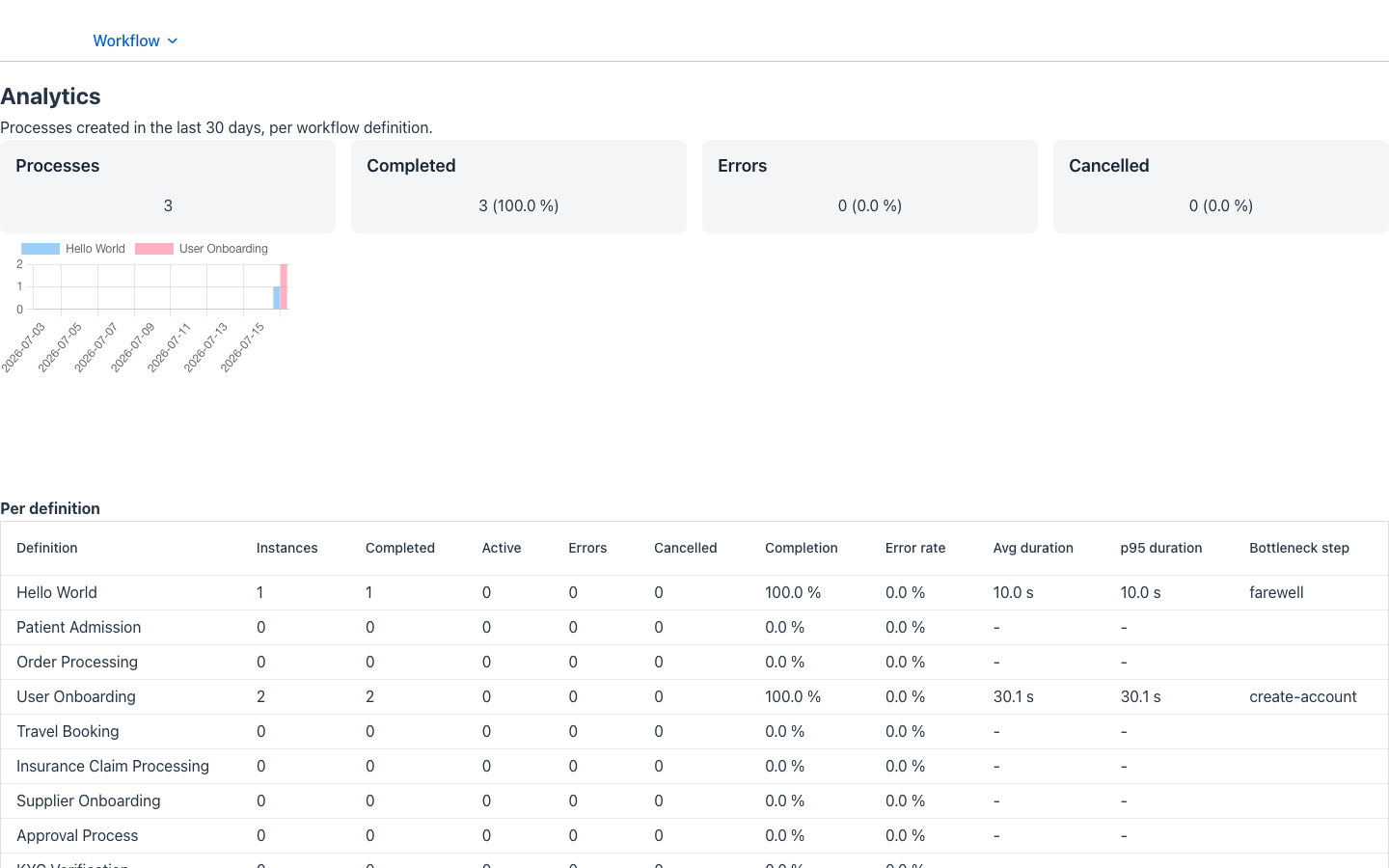
Built-in process analytics over the last 30 days (see the Process Analytics guide): KPI cards, a processes-per-day chart, a per-definition table with instance counts, completion/error rates and average/p95 durations, and a per-step table with the slowest step of each definition flagged as the bottleneck (⚠).
Forms Engine
Section titled “Forms Engine”Access the forms engine by navigating to http://localhost:8191/_forms or clicking Forms in the top navigation bar.
Dashboard
Section titled “Dashboard”The forms engine welcome page confirms the service is running and provides access to all form management sections via the Forms menu.

Form Definitions
Section titled “Form Definitions”Navigate via Forms → Forms.
The form definitions list shows all registered forms with their ID, name, and description. From here you can create new forms, edit existing ones with the visual drag-and-drop editor, or delete forms.
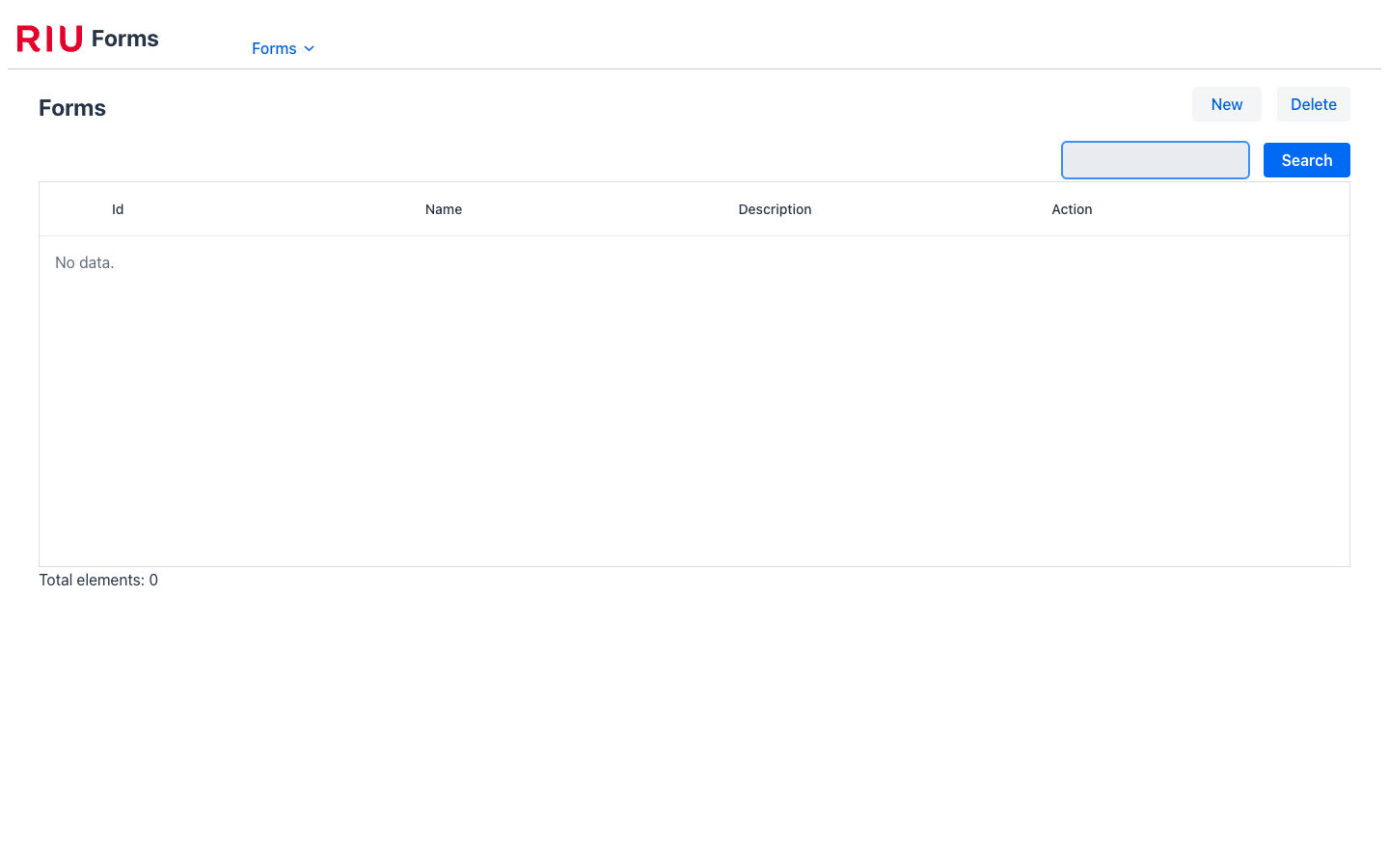
Available actions:
| Button | Description |
|---|---|
| New | Create a new form definition |
| Delete | Delete selected form definitions |
| Search | Filter forms by name or ID |
Form Executions
Section titled “Form Executions”Navigate via Forms → Executions.
Form executions are instances of a form linked to a specific process and step — created whenever a USER_TASK step is reached in a workflow. This view shows all executions with their linked process, step, status, assigned user, and user group.
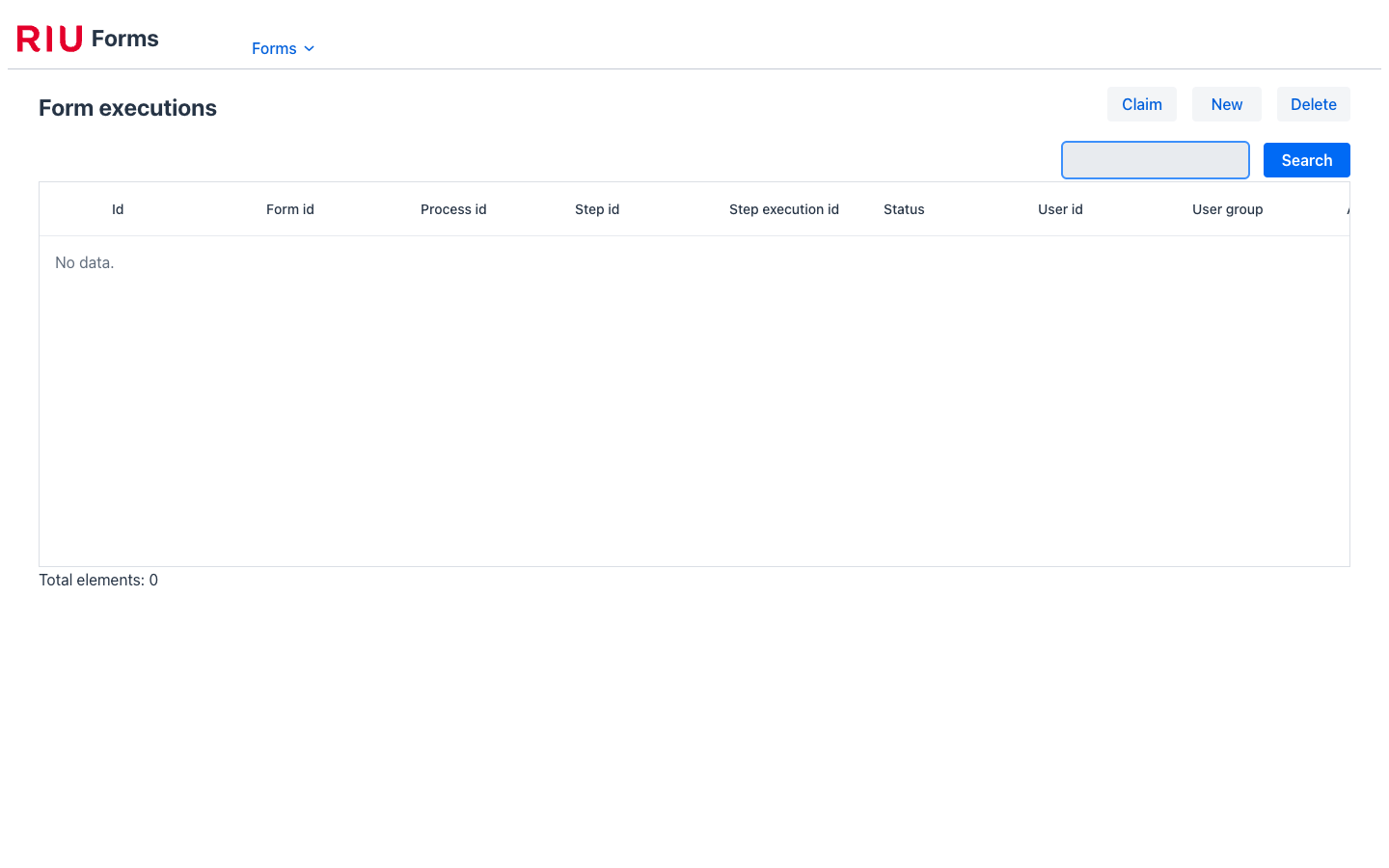
Available actions:
| Button | Description |
|---|---|
| Claim | Assign a pending task to the current user |
| New | Create a form execution manually |
| Delete | Delete selected executions |
Execution statuses:
| Status | Meaning |
|---|---|
Assigned | Waiting for a user to fill and submit the form |
Completed | User has submitted the form |
Navigate via Forms → Tasks.
The Tasks view shows pending user tasks in a simplified view, grouped by form and assignee. Use the Claim button to assign an unassigned task to yourself, then click Run to open and submit the form.
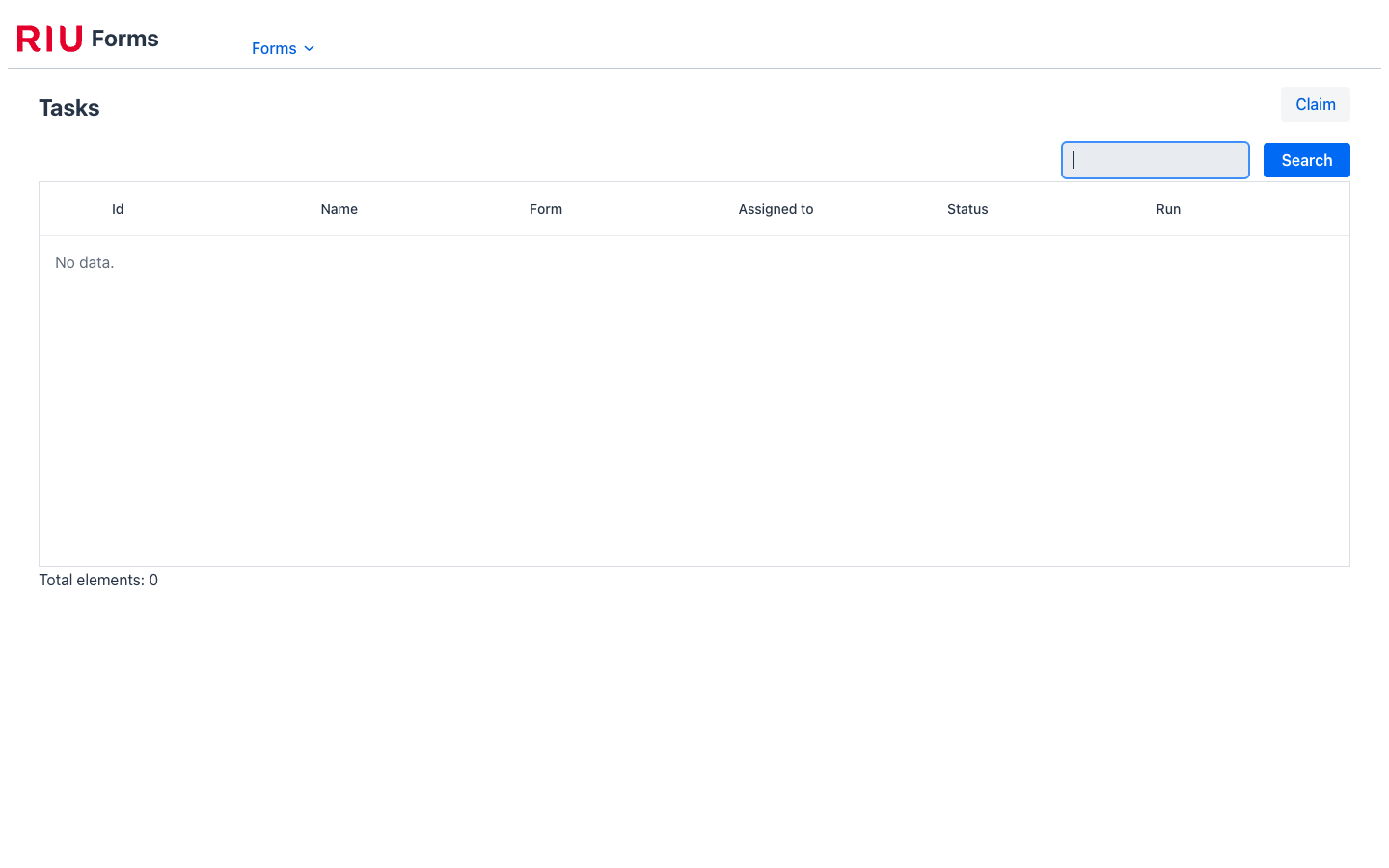
Columns shown: ID, Name, Form, Assigned to, Status, and a Run action button to open the form directly.
Rule Engine
Section titled “Rule Engine”Deployments that bundle the rule-engine module (for example dev-app or
rule-standalone-app) also serve a rules UI at the /_rules path, alongside
/_workflow and /_forms.
Navigate via Rules → Rules.
The rules list shows every rule definition in the catalog with its ID, name, type (expression rule or decision table) and version. Selecting a rule opens it for editing: the metadata fields are read-only and the full JSON or YAML definition is edited in a text area — the definition is the source of truth and is validated on save. New rules can be created and existing ones deleted from the same page.
Navigation structure
Section titled “Navigation structure”http://localhost:8191/ Console (main dashboard)
http://localhost:8191/_workflow Workflow Engine — operations └─ Workflow → Processes Process instances list └─ View Process detail + step executions └─ Workflow → Steps Step executions list
http://localhost:8191/_workflow-admin Workflow Engine — administration └─ Workflow → Definitions Workflow definitions list └─ Workflow → Tasks Task contracts └─ Workflow → Schedules Every schedule: create, pause/resume, run now, promote to git └─ View Schedule detail └─ Workflow → Event triggers Every event trigger: pause/resume └─ Workflow → Received events What each received domain event started or delivered └─ Workflow → Analytics Per-definition analytics & bottlenecks
http://localhost:8191/_forms Forms Engine — operations └─ Forms → Executions Form executions (user tasks) └─ Forms → Tasks Pending tasks simplified view └─ Forms → Task inbox Pending tasks, each with its form inline (FormsMenu only) └─ /my-tasks Personal task inbox
http://localhost:8191/_forms-admin Forms Engine — administration └─ Forms → Forms Form definitions list
/_rules Rule Engine (on apps bundling rule-engine, └─ Rules → Rules e.g. dev-app or rule-standalone-app)The two -admin paths are the same pods as the two above them, through a second @UI each. The
routes under a menu do not depend on which base URL served it: /workflow/definitions is
/workflow/definitions from either.
Authentication
Section titled “Authentication”The UI uses OpenID Connect via Keycloak. The default demo realm is mateu hosted on Cloud IAM. To configure your own Keycloak instance, update the Keycloak URL in the frontend bundle configuration and the API Gateway’s security settings.
The logged-in user is shown in the top-right corner of the Console. Click your name to access profile options or log out.